
Discord Webhook Sender
A Discord webhook is a URL that posts messages into one channel, no bot required. Build the message in a visual editor, paste the webhook URL and send it with any name and avatar.
Send a webhook message in three steps.
- 1
Create a webhook in Discord
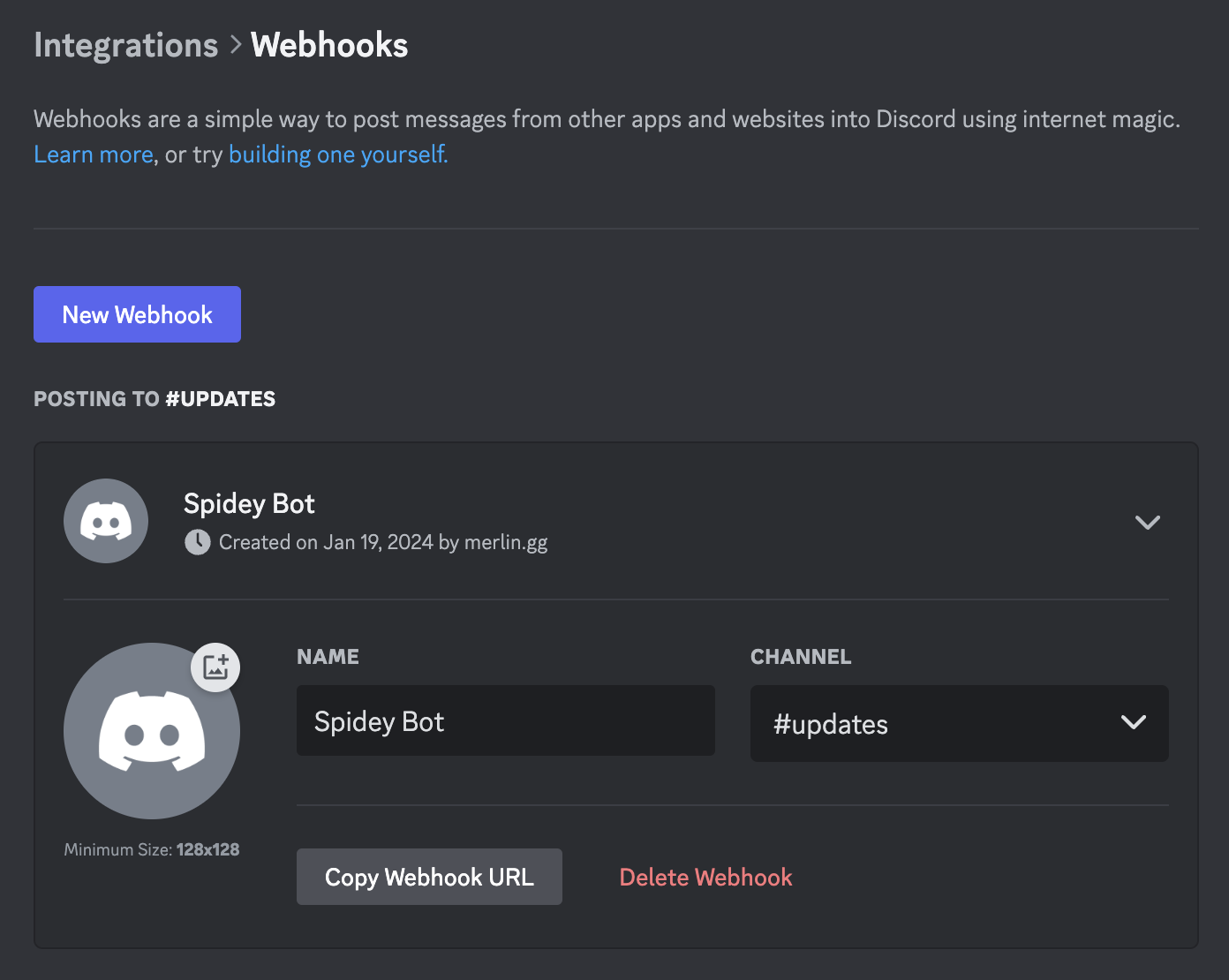
In the server settings, open Integrations → Webhooks and click New Webhook. Pick the channel it should post to and click Copy Webhook URL. You need the Manage Webhooks permission.
- 2
Paste the URL into the editor
Open the editor, choose Webhook in the send menu and paste the URL. No login and no bot needed.
- 3
Build the message and send
Write the text, add embeds and images, set a name and avatar, then click Send Message. It shows up in the channel right away.
Everything a webhook can send.
Embeds and Components V2
Titles, fields, images and colors, or sections, thumbnails and separators. The preview updates as you type. Learn more →
Any name and avatar
Every message can post under its own name and picture, so one webhook can be Mod Team today and Event Bot tomorrow. Learn more →
Edit after sending
Paste a message link to load a sent message back into the editor and update it in place.
Threads and forum posts
Paste a thread ID to post inside a thread or reply in an existing forum post.
Files and images
Attach files and images to the message, alongside the embeds.
Fluxer too
Fluxer webhooks take the same messages. Paste a Fluxer webhook URL and send. Learn more →
Want buttons that do something?
A webhook can only send. It can't read the channel, react or respond to a click, because Discord delivers clicks to the app that owns the message. For buttons that hand out roles, select menus and replies, add the Embed Generator bot and send to a channel instead.
Send to a webhook from code.
A webhook takes a JSON POST, so a script or CI job can use it directly. With wait=true Discord answers with the created message, including the ID you need to edit it later with a PATCH to /webhooks/ID/TOKEN/messages/ID. Without it the response is an empty 204.
curl -X POST "https://discord.com/api/webhooks/ID/TOKEN?wait=true" \
  -H "Content-Type: application/json" \
  -d '{
    "username": "Deploy Bot",
    "content": "Deploy finished",
    "embeds": [{ "title": "v2.4.1 is live", "color": 5763719 }]
  }'
Designed a message in the editor? Open JSON Code there and copy the JSON to send it from your own code.
Questions.
- Can I edit a webhook message after sending it?
- Yes, as long as the same webhook sent it. Right-click the message in Discord, choose Copy Message Link and paste it into Message ID or URL. Restore Message loads it into the editor and Edit Message replaces it. Sending again always posts a new message.
- How do I send to a thread or forum post?
- Turn on Developer Mode under User Settings → Advanced, right-click the thread or forum post, choose Copy Thread ID and paste it into Thread ID.
- How long can a webhook message be?
- Up to 2,000 characters of text and up to 10 embeds, with 6,000 characters across all of them. Files, images, link buttons and Components V2 layouts work too.
- Do I need an account?
- No. Sending to a webhook works without logging in. You only need to log in for things that need the bot, like buttons that hand out roles.
- What if my webhook URL leaks?
- Anyone with the URL can post to the channel and delete the webhook. Discord can't reset the URL, so delete the webhook under Integrations → Webhooks and create a new one.
- Where did this webhook URL come from?
- Paste it into the Webhook Info tool. It shows the webhook's name, avatar, server and who created it. Webhook Info →